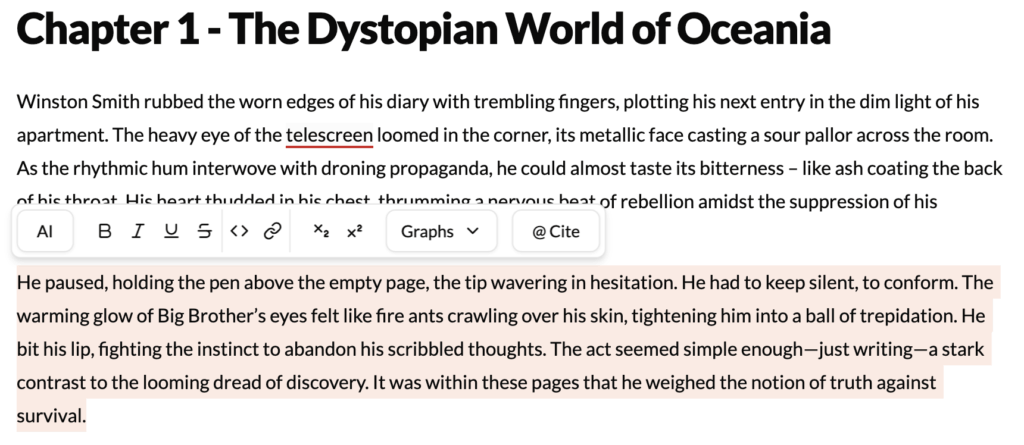
While AI tool, this is the foundation of the selection menu. It provides standard word-processing options to stylize your text.
- What It Does: Applies basic text formatting.
- How to Use: Highlight the text you wish to change and select options like Bold, Italic, Code, or create lists.
- Best For: Quickly adding emphasis, structuring text, and improving readability without leaving the keyboard.
What It Does
The Formatting tool is your standard set of text styling options, similar to those found in any word processor. While it isn’t an AI-powered feature, it is a fundamental part of the writing and editing process, allowing you to visually structure your text for clarity and emphasis.
How to Use It
- Highlight Text: Select the word, sentence, or paragraph you wish to format.
- Choose an Option: The contextual menu will appear. Click on the desired formatting style:
- Bold: To make text heavier and more prominent.
- Italic: To add emphasis, denote titles, or indicate internal thought.
- Code: To format text as a code snippet, useful for technical writing.
- Lists: To create numbered or bulleted lists for better organization.
Best Use Cases
- Adding Emphasis: Quickly bolding a key phrase or italicizing a specific word to change its meaning or impact.
- Structuring Content: Using bullet points or numbered lists to break up long paragraphs, making your text easier to read and digest. This is especially useful for blog posts, reports, and instructional content.
- Dialogue and Narration: In fiction, italics are commonly used to represent a character’s internal thoughts, distinguishing them from spoken dialogue.
Pro-Tip
Use formatting to create a clear visual hierarchy in your documents. For example, you can use bolded text for unofficial subheadings within a chapter to organize your thoughts before you structure them more formally. This can make navigating your draft much easier during the editing process.