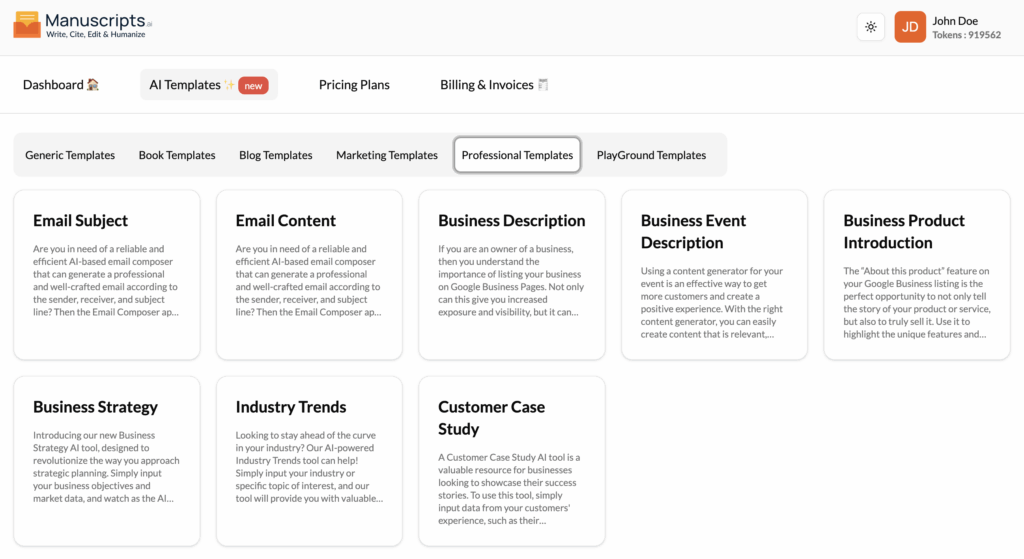
Email Subject
What It Is?
The Email Subject template is a specialized tool for crafting clear, professional, and effective email subject lines. The subject line is often the most important part of an email, determining whether it gets opened or ignored.
This AI-based tool generates a subject line based on the key components of your message: the sender, the receiver, and the core topic. It takes the guesswork out of writing subject lines and provides you with several options designed to be professional and get results.
How to Use It?
- Navigate to Templates: Open the “AI Templates” library.
- Select Template: Find and click on “Email Subject” in the “Professional Templates” section.
- Provide Inputs:
- Sender: (e.g., “A manager,” “A colleague,” “A salesperson”).
- Receiver: (e.g., “My team,” “A new client,” “Executive leadership”).
- Topic: The core purpose of the email (e.g., “Meeting request,” “Project update,” “Congratulations on launch”).
- Generate: Click the “Generate” button to get a list of professional subject lines.
Best Use Cases
- Important Business Emails: Ensuring your email to a client or executive gets opened.
- Team Communication: Writing clear subject lines for project updates or announcements.
- Sales Outreach: Crafting subject lines that are less “salesy” and more professional.
Email Content
What It Is?
The Email Content template is your reliable and efficient AI-based email composer. It generates a complete, professional, and well-crafted email based on your instructions.
This tool takes care of the tedious job of composing emails from scratch. You provide the key information—sender, receiver, and subject—and the AI drafts the entire email, including the greeting, body, and sign-off. It provides you with a well-structured draft that you can quickly customize and send.
How to Use It?
- Navigate to Templates: Open the “AI Templates” library.
- Select Template: Find and click on “Email Content” in the “Professional Templates” section.
- Provide Inputs:
- Sender: (e.g., “Project Manager”).
- Receiver: (e.g., “Development Team”).
- Subject/Topic: (e.g., “Urgent: Bug found in new release”).
- Key Points to Include: A bulleted list of what you need to say.
- Tone: (e.g., “Formal,” “Urgent,” “Friendly”).
- Generate: Click the “Generate” button to get a full email draft.
Best Use Cases
- Daily Business Communication: Quickly drafting any professional email.
- Difficult Conversations: Crafting a polite and professional email for a sensitive topic.
- Formal Requests: Writing a well-structured email to a client, vendor, or upper management.
Business Description
What It Is?
The Business Description template is designed to help business owners write a clear and compelling description for their Google Business Page (formerly Google My Business). Your Google Business listing is often the first impression a customer has of your business.
A good description can increase your visibility and credibility. This tool helps you write a description that not only explains what you do but also highlights your reputation, a key factor in boosting customer trust and encouraging them to leave positive reviews.
How to Use It?
- Navigate to Templates: Open the “AI Templates” library.
- Select Template: Find and click on “Business Description” in the “Professional Templates” section.
- Provide Inputs:
- Business Name: Your company’s name.
- What You Do: A brief list of your products or services.
- Unique Selling Proposition: What makes you different?
- Tone: (e.g., “Professional,” “Friendly,” “Community-focused”).
- Generate: Click the “Generate” button to get a description optimized for your Google Business listing.
Best Use Cases
- Local SEO: Creating or optimizing your Google Business Page.
- Website “About Us”: Writing the summary for your “About Us” page.
- Social Media Profiles: Crafting the “Bio” for your business’s social media accounts.
Business Event Description
What It Is?
The Business Event Description template is a content generator for promoting your business events. An effective event description is key to generating interest and driving registrations.
This tool helps you easily create content that is relevant, interesting, and well-structured. It will generate a description customized to your audience that highlights the value of attending, which can generate more interest and ticket sales for your event.
How to Use It?
- Navigate to Templates: Open the “AI Templates” library.
- Select Template: Find and click on “Business Event Description” in the “Professional Templates” section.
- Provide Inputs:
- Event Name: The title of your event.
- Date and Time: When is it?
- Target Audience: Who should attend?
- Key Benefits/Topics: What will attendees learn or experience?
- Call-to-Action: (e.g., “Register today!”).
- Generate: Click the “Generate” button to get an engaging event description.
Best Use Cases
- Eventbrite/Meetup: Writing the description for your event listing.
- Landing Pages: Creating the main copy for your event registration page.
- Email Invitations: Writing the body text for an email inviting people to your event.
Business Product Introduction
What It Is?
The Business Product Introduction template is specifically designed to write the “About this product” section for a Google Business listing. This is a key opportunity to not only tell the story of your product but to truly sell it.
This tool helps you write a description that highlights the unique features and benefits of your product or service. It explains why what you offer is the best choice and showcases why customers choose you, helping you convert searchers into customers.
How to Use It?
- Navigate to Templates: Open the “AI Templates” library.
- Select Template: Find and click on “Business Product Introduction” in the “Professional Templates” section.
- Provide Inputs:
- Product/Service Name:
- Key Features: What does it do?
- Key Benefits: Why is it the best choice?
- Target Customer: Who is this for?
- Generate: Click the “Generate” button to get a compelling “About this product” description.
Best Use Cases
- Google Business Listings: Populating the “Products” tab on your profile.
- Feature Highlights: Writing a short introduction to a new product for your website.
- Sales Sheets: Creating a concise summary for a one-page sales document.
Business Strategy
What It Is?
The Business Strategy template is an advanced AI tool designed to revolutionize your strategic planning. This tool goes beyond writing to act as a business consultant.
You input your business objectives and market data, and the AI generates comprehensive strategic recommendations. It can provide real-time analysis and intelligent insights, offering customizable frameworks to fit your unique business needs and help you craft a winning strategy.
How to Use It?
- Navigate to Templates: Open the “AI Templates” library.
- Select Template: Find and click on “Business Strategy” in the “Professional Templates” section.
- Provide Inputs:
- Business Objective: (e.g., “Increase market share in the EU,” “Launch a new subscription service”).
- Market Data (Optional): (e.g., “Competitors are lowering prices,” “Target audience is moving to TikTok”).
- Business Type: (e.g., “SaaS,” “E-commerce,” “Restaurant”).
- Generate: Click the “Generate” button to get a list of strategic recommendations, potential risks, and action items.
Best Use Cases
- Strategic Planning: Brainstorming for your quarterly or annual business plan.
- Problem Solving: Generating solutions for a specific business challenge.
- Market Entry: Crafting a strategy for entering a new market.
Industry Trends
What It Is?
The Industry Trends AI tool helps you stay ahead of the curve in your field. This is a research and analysis tool that provides valuable insights, analysis, and predictions on current and future trends.
You simply input your industry or a specific topic of interest, and the tool will generate a report on what’s happening. Whether you’re in finance, healthcare, tech, or any other industry, this tool can help you make informed decisions and stay competitive.
How to Use It?
- Navigate to Templates: Open the “AI Templates” library.
- Select Template: Find and click on “Industry Trends” in the “Professional Templates” section.
- Provide Inputs:
- Industry: (e.g., “Artificial Intelligence,” “Renewable Energy,” “Fashion Retail”).
- Topic (Optional): (e.g., “Generative AI,” “Solar panel efficiency”).
- Generate: Click the “Generate” button to get a summary of current trends, predictions, and key players.
Best Use Cases
- Market Research: Understanding the competitive landscape.
- Content Creation: Finding timely, relevant topics for your blog or presentations.
- Business Strategy: Identifying new opportunities or threats in your industry.
- R&D: Informing your product development roadmap.
Customer Case Study
What It Is?
The Customer Case Study template is a valuable resource for businesses looking to showcase their success stories. A good case study is one of the most powerful marketing assets you can have.
This tool helps you structure and write a compelling case study. You input the raw data from your customer’s experience—their challenges, the solutions you provided, and the results they achieved. The AI then creates a narrative that can be used for marketing and sales, helping you demonstrate your value and build credibility.
How to Use It?
- Navigate to Templates: Open the “AI Templates” library.
- Select Template: Find and click on “Customer Case Study” in the “Professional Templates” section.
- Provide Inputs (as a list or bullet points):
- Customer: (e.g., “A mid-sized tech company”).
- Challenge: (e.g., “Was struggling with low website conversion rates”).
- Solution: (e.g., “We redesigned their landing page and optimized their checkout flow”).
- Results: (e.g., “Increased conversion rates by 40% in 3 months,” “Added a quote: ‘It was a game-changer'”).
- Generate: Click the “Generate” button to get a full case study draft.
Best Use Cases
- Website Content: Creating a “Case Studies” or “Success Stories” section.
- Sales Enablement: Providing your sales team with powerful stories to share with prospects.
Marketing Materials: Using in presentations, brochures, and email campaigns.