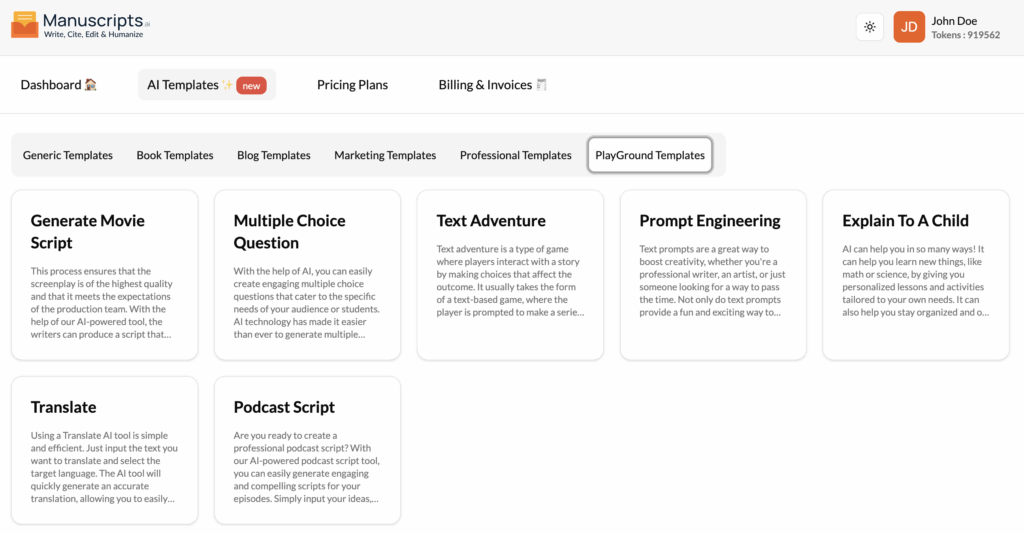
Generate Movie Script
What It Is?
The Generate Movie Script template is a creative tool for screenwriters and hobbyists. It helps you generate a scene for a movie, formatted correctly as a screenplay.
This AI-powered tool can help writers produce a script that serves as a great foundation for a successful movie. By providing a scene description, characters, and dialogue cues, the AI can generate a formatted scene, reducing the time and resources needed to get your ideas on the page.
How to Use It?
- Navigate to Templates: Open the “AI Templates” library.
- Select Template: Find and click on “Generate Movie Script” in the “Playground Templates” section.
- Provide Inputs:
- Scene Setting: (e.g., “INT. COFFEE SHOP – NIGHT”).
- Characters: (e.g., “JANE, 30s, a nervous detective; MARK, 40s, a calm suspect”).
- Scene Summary: “Jane interrogates Mark over coffee about what happened last night.”
- Key Dialogue (Optional): “Include the line: ‘I haven’t been there in years.'”
- Generate: Click the “Generate” button to get a script-formatted scene.
Best Use Cases
- Screenwriting: Quickly drafting a scene to see how it flows.
- Brainstorming: Exploring different dialogue options or character interactions.
- Learning: Seeing how a scene idea is translated into proper script format.
Multiple Choice Question
What It Is?
The Multiple Choice Question template is a tool for educators, students, and trainers. It helps you easily create engaging and accurate multiple-choice questions on any topic.
AI technology makes it easy to generate questions based on a variety of criteria, including difficulty level, answer complexity, and other relevant factors. You can provide a piece of text for the AI to base the questions on, or simply give it a topic. It can incorporate factual information to create questions that are both interesting and educational.
How to Use It?
- Navigate to Templates: Open the “AI Templates” library.
- Select Template: Find and click on “Multiple Choice Question” in the “Playground Templates” section.
- Provide Inputs:
- Source Text (Recommended): Paste a paragraph or article you want to test knowledge on.
- OR Topic: (e.g., “World War II,” “Photosynthesis”).
- Number of Questions: (e.g., “5 questions”).
- Difficulty: (e.g., “Easy,” “Hard”).
- Generate: Click the “Generate” button to get a list of questions, correct answers, and distractors.
Best Use Cases
- Education: Creating quizzes and tests for students.
- Studying: Generating practice questions for yourself based on your study notes.
- Testing: Building knowledge-check questions for an online course or training module.
Text Adventure
What It Is?
The Text Adventure template is an interactive game generator. It creates a story where you, the player, interact by making choices that affect the outcome. It’s a text-based game where you are prompted with a scenario and a series of decisions.
The story is generated by the AI as you play, so each time you play, you can experience a different story. This is a fun, creative way to interact with the AI and explore its storytelling capabilities.
How to Use It?
- Navigate to Templates: Open the “AI Templates” library.
- Select Template: Find and click on “Text Adventure” in the “Playground Templates” section.
- Start the Adventure: Enter a starting prompt for your adventure.
- (e.g., “I’m a knight entering a dark, spooky castle.”)
- (e.g., “I’m a scientist on a spaceship that just crash-landed.”)
- Play: The AI will describe your situation and give you choices (or you can type your own action). You make a choice, and the AI generates the next part of the story.
Best Use Cases
- Entertainment: A fun way to pass the time and co-create a story.
- Creative Inspiration: Exploring a character or setting in an interactive way.
- Storytelling: Seeing how an AI handles branching narratives and player choice.
Prompt Engineering
What It Is?
The Prompt Engineering template is a “meta” tool designed to help you get better results from the AI. A “prompt” is the instruction you give the AI. The quality of your prompt directly determines the quality of the AI’s response.
This tool helps you boost your creativity by teaching you how to write better prompts. It can take your simple idea and “engineer” it into a detailed, structured prompt that will give the AI all the context it needs. It’s a great way to discover new ideas and topics you may not have thought of by learning how to ask for them.
How to Use It?
- Navigate to Templates: Open the “AI Templates” library.
- Select Template: Find and click on “Prompt Engineering” in the “Playground Templates” section.
- Provide Inputs:
- Your Simple Prompt: (e.g., “Write a story about a dragon”).
- Your Goal: (e.g., “I want the story to be funny and for a child”).
- Generate: Click the “Generate” button. The AI will return a new, much more detailed “engineered prompt” (e.g., “Write a 500-word children’s story with a humorous tone about a clumsy dragon named Sparky who is afraid of heights. The story should…”).
Best Use Cases
- Learning: Understanding how to write better prompts to improve all your AI interactions.
- Getting Better Results: When your “Write Anything” prompts aren’t giving you what you want.
- Creative Exploration: Seeing what kind of prompts you can create to push the AI’s boundaries.
Explain To A Child
What It Is?
The Explain To A Child template is a powerful simplification tool. It takes a complex topic or piece of text and rewrites it in simple, easy-to-understand language, as if you were explaining it to a child.
This tool is perfect for breaking down jargon, dense academic text, or any complicated subject. It helps you grasp the core concepts or provides you with a script to explain things to others (like your own kids, or even in a business presentation where clarity is key).
How to Use It?
- Navigate to Templates: Open the “AI Templates” library.
- Select Template: Find and click on “Explain To A Child” in the “Playground Templates” section.
- Provide Inputs:
- Topic or Text: You can either type a topic (e.g., “Quantum Physics”) or paste a block of complex text.
- Generate: Click the “Generate” button to get the simplified explanation.
Best Use Cases
- Learning: Understanding complex subjects for your own research.
- Parenting/Teaching: Getting a simple script to explain a tough topic to a child.
- Business Communication: Simplifying a technical concept to explain it to a non-technical stakeholder or client.
Translate
What It Is?
The Translate template is a simple and efficient tool for translating text from one language to another. It’s a valuable resource for breaking down language barriers and facilitating global communication.
This tool is useful for quick translations of a word, a sentence, or an entire paragraph. Whether it’s for work, research, or personal use, this template provides a fast and accurate translation.
How to Use It?
- Navigate to Templates: Open the “AI Templates” library.
- Select Template: Find and click on “Translate” in the “Playground Templates” section.
- Provide Inputs:
- Source Language (Optional): You can select it, or let the AI “Auto-Detect.”
- Target Language: Select the language you want to translate to.
- Text: Paste the text you want to translate.
- Generate: Click the “Generate” button to get the translation.
Best Use Cases
- Research: Translating a foreign-language source or academic paper.
- Communication: Quickly translating an email or message.
- Writing: Finding the right word or phrase in another language for your story.
Podcast Script
What It Is?
The Podcast Script template helps you create professional, engaging scripts for your podcast episodes. This AI-powered tool helps you structure your content, add natural-sounding language, and enhance your storytelling.
You simply input your ideas, key points, and desired tone, and the AI will generate a script, often complete with sections for an intro, host dialogue, interview questions, and an outro. It’s the perfect tool to elevate your podcasting game from a simple outline to a full-fledged script.
How to Use It?
- Navigate to Templates: Open the “AI Templates” library.
- Select Template: Find and click on “Podcast Script” in the “Playground Templates” section.
- Provide Inputs:
- Episode Topic: The main subject of your podcast.
- Host(s): (e.g., “One host,” or “Two hosts: Alex and Ben”).
- Key Points: A bulleted list of topics you want to cover.
- Tone: (e.g., “Casual and funny,” “Investigative,” “Educational”).
- Generate: Click the “Generate” button to get a draft of your podcast script.
Best Use Cases
- Podcast Pre-production: Turning your episode research into a full script.
- Solo Shows: Generating a structured monologue to keep you on track.
- Interview Prep: Drafting an intro, outro, and a list of questions for a guest.