Paragraph Writer
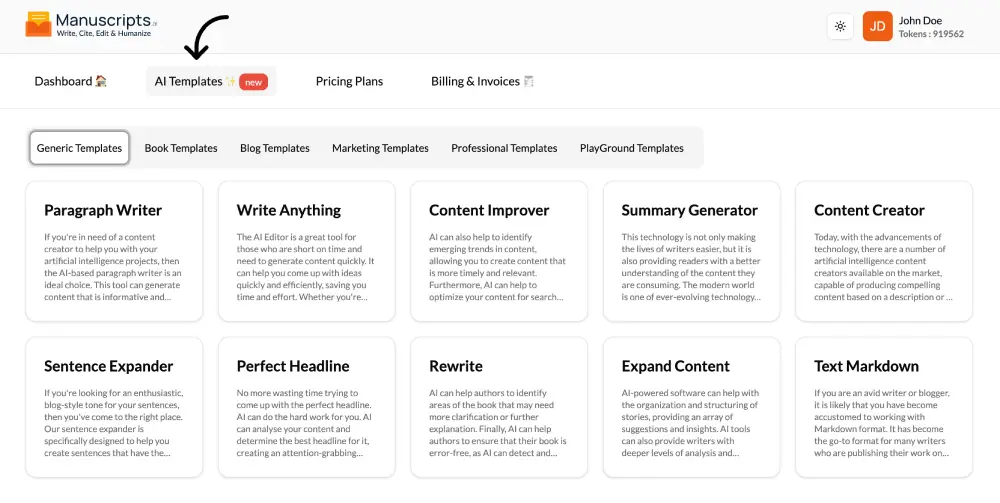
What It Is?
The Paragraph Writer is your go-to tool for generating a complete, well-structured paragraph on any topic. Based on your inputs, it can create content that is informative, engaging, and perfectly matched to your desired tone. This template is ideal for overcoming writer’s block or for quickly drafting a piece of content when you know the key points you need to hit but are struggling to find the right words.
The AI is designed to understand nuance. Whether you need a concise and professional tone for a business report, a casual and informal tone for a blog post, or an enthusiastic and persuasive tone for a marketing blurb, the Paragraph Writer can be customized to fit your needs.
How to Use It?
- Navigate to Templates: Open the “AI Templates” library.
- Select Template: Find and click on “Paragraph Writer” in the “Generic Templates” section.
- Provide Context: Fill in the input fields:
- Topic/Keywords: Enter the main subject of your paragraph (e.g., “the benefits of remote work,” “Shakespeare’s early life”).
- Tone of Voice: Specify the desired tone (e.g., “Professional,” “Casual,” “Enthusiastic,” “Academic”).
- Key Points to Include (Optional): List any specific facts, ideas, or arguments you want the AI to include in the paragraph.
- Generate: Click the “Generate” button. The AI will produce a fully-formed paragraph based on your instructions.
Best Use Cases
- Drafting Blog Posts: Quickly generate body paragraphs for your blog outline.
- Writing Essays: Create introductory, supporting, or concluding paragraphs for an academic paper.
- Marketing Copy: Draft a descriptive paragraph for a product, service, or “About Us” page.
- Overcoming Writer’s Block: Use it as a starting point when you’re staring at a blank page and just need to get some words down.
Write Anything
What It Is?
The Write Anything template is your universal, free-form AI assistant. It’s designed for moments when you’re short on time and need to generate content quickly, but your request doesn’t fit neatly into any other template. It acts as a blank canvas, allowing you to provide any prompt and get a relevant response.
This tool is perfect for rapid idea generation and efficient drafting. Whether you’re writing a blog post, an article, a research paper, or just brainstorming a list, the AI Editor can help you produce ideas and content in a fraction of the time. It’s adaptable to any writing style, from the most professional and technical to the most novice and creative.
How to Use It?
- Navigate to Templates: Open the “AI Templates” library.
- Select Template: Find and click on “Write Anything” in the “Generic Templates” section.
- Enter Your Prompt: This is the most important step. Be as clear and specific as possible in the main input box.
- Bad Prompt: “Write about marketing.”
- Good Prompt: “Write three short paragraphs explaining the concept of ‘content marketing’ for a beginner’s blog post. The tone should be helpful and simple.”
- Generate: Click the “Generate” button to receive your.
Best Use Cases
- Brainstorming: “Give me 10 ideas for a fantasy novel.”
- Quick Drafts: “Write a short email to my team congratulating them on launching the project.”
- Explanations: “Explain the water cycle in simple terms.”
- Any Task Not Covered: This is your multi-tool for any writing task not represented by another, more specific template.
Content Improver
What It Is?
The Content Improver is a powerful template designed to elevate your existing text. Unlike a simple grammar check, this tool analyzes your content on a deeper level. It not only polishes your writing but also helps you optimize it for your audience and goals.
The AI can identify emerging trends related to your topic, allowing you to create content that is more timely and relevant. It can help optimize your content for search engine rankings (SEO) by suggesting relevant keywords and a better structure. This template streamlines the entire content creation and revision process, making it faster and easier to create high-impact content that truly meets the needs of your audience.
How to Use It?
- Navigate to Templates: Open the “AI Templates” library.
- Select Template: Find and click on “Content Improver” in the “Generic Templates” section.
- Paste Your Text: Copy the draft text (a paragraph, a section, or a full article) you want to improve and paste it into the input field.
- Define Your Goal (Optional): Specify what you want to improve (e.g., “Make it more persuasive,” “Improve SEO,” “Simplify the language”).
- Generate: Click the “Generate” button. The AI will provide a new, improved version of your text.
Best Use Cases
- SEO Optimization: Improving a blog post to rank better on search engines.
- Draft Revision: Taking a rough draft and making it more polished and professional.
- Updating Old Content: Refreshing an old article to make it more current and relevant.
- Improving Clarity: Simplifying complex or jumbled text to make it easier to read.
Summary Generator
What It Is?
The Summary Generator is an efficiency tool that condenses long-form text into a concise, easy-to-digest summary. This template leverages AI to read and understand a large block of content, identify the most critical points, and generate a short, coherent summary.
This technology is invaluable for writers and researchers. It helps you quickly get the gist of an article, a chapter, or a research paper, allowing you to assess its relevance or extract key information without spending hours reading. It provides readers with a better, faster understanding of the content they are consuming, making it perfect for creating abstracts, introductions, or executive summaries.
How to Use It?
- Navigate to Templates: Open the “AI Templates” library.
- Select Template: Find and click on “Summary Generator” in the “Generic Templates” section.
- Paste Your Text: Copy the text you want to summarize and paste it into the input field.
- Specify Length (Optional): You can often suggest a desired length (e.g., “one paragraph,” “three bullet points”).
- Generate: Click the “Generate” button to receive the concise summary.
Best Use Cases
- Research: Quickly summarizing academic papers or source materials.
- Creating Abstracts: Generating an abstract for your own essay or report.
- Writing Introductions: Using the summary as a starting point for an introduction that outlines the text’s main points.
- Content Curation: Summarizing third-party articles for a newsletter or social media post.
Content Creator
What It Is?
The Content Creator is a powerful generator designed to produce original, compelling content based on a simple prompt. By providing a short description or a set of keywords, you can generate entire sections of text, making it an incredibly valuable tool for businesses, bloggers, and authors.
This template is designed to optimize the time and cost associated with content creation. If you’re looking for a tool that can produce top-notch, engaging content from product descriptions to blog sections the Content Creator is a perfect solution. It’s a step up from the “Paragraph Writer” and is capable of producing longer, more developed pieces of content.
How to Use It?
- Navigate to Templates: Open the “AI Templates” library.
- Select Template: Find and click on “Content Creator” in the “Generic Templates” section.
- Provide Inputs:
- Topic/Description: Write a clear and descriptive brief of what you want the AI to write about (e.g., “A section for a blog post about the importance of hydration for athletes”).
- Keywords (Optional): List any keywords you want the AI to include (e.g., “electrolytes,” “performance,” “recovery”).
- Tone of Voice: Select the desired tone (e.g., “Authoritative,” “Friendly,” “Inspirational”).
- Generate: Click the “Generate” button.
Best Use Cases
- Drafting Web Pages: Creating content for an “About Us,” “Services,” or “FAQ” page.
- Initial Blog Drafts: Generating the core content for a blog post based on an outline.
- Marketing Copy: Writing descriptions for marketing emails or landing pages.
- Expanding Ideas: Taking a simple idea and fleshing it out into a full section of text.
Sentence Expander
What It Is?
The Sentence Expander is a micro-tool focused on turning simple ideas into more descriptive, persuasive, and engaging sentences. It’s perfect for when you have a basic sentence but want to add more flair, professionalism, or emotion.
This tool is specifically designed to help you craft sentences that have a specific voice, such as that of a passionate blogger. With just a few simple keywords or a short sentence, you can quickly and easily add a professional and persuasive tone to your work. The AI allows you to customize your sentences, ensuring the final voice is exactly what you want, from casual to formal.
How to Use It?
- Navigate to Templates: Open the “AI Templates” library.
- Select Template: Find and click on “Sentence Expander” in the “Generic Templates” section.
- Enter Text: Type the short sentence or keywords you want to expand (e.g., “The coffee is good,” or “keywords: dog, park, happy”).
- Specify Tone (Optional): Add a note about the desired tone (e.g., “Make it sound enthusiastic,” “Make it sound more professional”).
- Generate: Click the “Generate” button to see several expanded options.
Best Use Cases
- Polishing Prose: Turning a simple sentence (“It was cold”) into a descriptive one (“A bitter wind whipped through the streets, chilling him to the bone”).
- Marketing Headlines: Expanding a simple product feature into a persuasive benefit statement.
- Blogging: Adding an enthusiastic, blog-style voice to your writing.
Perfect Headline
What It Is?
The Perfect Headline template is your solution to one of the hardest parts of writing: crafting an attention-grabbing headline. This tool analyzes your content and generates a variety of different headlines designed to draw readers in and encourage them to keep reading.
No more wasting time trying to come up with the perfect title. The AI can analyze your provided text, determine its core message, and create a list of headlines that are catchy, informative, and optimized for engagement. This allows you to A/B test different options or simply choose the one that best suits your content.
How to Use It?
- Navigate to Templates: Open the “AI Templates” library.
- Select Template: Find and click on “Perfect Headline” in the “Generic Templates” section.
- Paste Your Text: Paste the full body of your article, blog post, or essay into the input field. The more context the AI has, the better the headlines will be.
- Target Audience (Optional): Mention your target audience (e.g., “Beginner coders,” “Marketing professionals”).
- Generate: Click the “Generate” button to receive a list of potential headlines.
Best Use Cases
- Blog Posts: Creating SEO-friendly and click-worthy titles for your articles.
- Essays: Brainstorming academic titles that are both informative and compelling.
- Marketing: Writing subject lines for emails or headlines for landing pages.
- Book Chapters: Coming up with engaging chapter titles.
Rewrite
What It Is?
The Rewrite template is a comprehensive tool for improving the quality of your existing text. It goes beyond simple paraphrasing to act as an AI-powered editor. When you input your text, the AI can help identify areas that need more clarification or further explanation.
It also serves as a high-level proofreader, detecting and correcting grammatical or spelling mistakes to ensure your book or article is error-free. In short, this template is a valuable tool for any author looking to significantly improve the overall quality, clarity, and correctness of their writing.
How to Use It?
- Navigate to Templates: Open the “AI Templates” library.
- Select Template: Find and click on “Rewrite” in the “Generic Templates” section.
- Paste Your Text: Copy the text you want to rewrite (a paragraph or a full page) and paste it into the input field.
- Specify Goal: State your intention for the rewrite.
- “Rewrite this to be more professional.”
- “Rewrite this to clarify the main point.”
- “Rewrite and fix all grammatical errors.”
- Generate: Click the “Generate” button.
Best Use Cases
- Polishing Rough Drafts: Turning a “stream-of-consciousness” draft into a structured, professional piece.
- Improving Clarity: Rewriting convoluted or technical text to be more understandable.
- Tone Adjustment: Changing the tone of a piece of writing (e.g., from formal to casual).
- Final Proofreading: Using the AI as a final check to catch errors and improve flow.
Expand Content
What It Is?
The Expand Content template is a powerful creative tool for when you have a seed of an idea but need help fully developing it. This AI-powered software can help with the organization and structuring of stories or articles, providing an array of suggestions and insights.
This tool can provide deeper levels of analysis, helping you understand your story and make the most of your creative vision. It can even be used to generate entire stories or sections based on user-defined criteria, offering a unique way to explore the creative process and flesh out a simple concept into a fully-realized narrative or argument.
How to Use It?
- Navigate to Templates: Open the “AI Templates” library.
- Select Template: Find and click on “Expand Content” in the “Generic Templates” section.
- Provide Context: Enter the sentence, paragraph, or idea you want to expand upon.
- Set Criteria: Give the AI clear instructions.
- “Expand this paragraph into a full section for a blog post.”
- “Expand this story idea into a 500-word short story.”
- “Expand on this argument with supporting evidence.”
- Generate: Click the “Generate” button.
Best Use Cases
- Storytelling: Turning a plot point or a character idea into a full scene or chapter.
- Blogging: Expanding a single bullet point from your outline into a full, detailed section.
- Academic Writing: Fleshing out a key argument with more explanation and supporting details.
- Overcoming Writer’s Block: When you’re stuck, use this to build momentum by expanding on what you’ve already written.
Text Markdown
What It Is?
The Text Markdown template is a utility for writers and bloggers who work with the Markdown format. Markdown is a lightweight markup language for creating formatted text using a plain-text editor, popular on platforms like GitHub, Reddit, and many blogging systems.
This tool is designed to bridge the gap between plain text and formatted text. It can either take your plain text and convert it into Markdown syntax (e.g., adding * for italics, ## for headings) or take Markdown-formatted text and convert it back to plain text. This is essential for writers who publish on multiple platforms, some of which may not support rich text editors.
How to Use It?
- Navigate to Templates: Open the “AI Templates” library.
- Select Template: Find and click on “Text Markdown” in the “Generic Templates” section.
- Paste Your Text: Paste the text you want to convert.
- Select Action: Choose your desired conversion.
- “Convert to Markdown”: Takes plain text and formats it.
- “Convert from Markdown”: Removes Markdown formatting and leaves plain text.
- Generate: Click the “Generate” button to get the converted text.
Best Use Cases
- Bloggers: Writing your post in Manuscripts.ai and then converting it to Markdown for publishing on your blog.
- Developers: Writing documentation (like a README.md file) in a simple text editor and then formatting it.
Cross-Platform Publishing: Ensuring your text formatting is consistent when moving it from your word processor to a web platform.