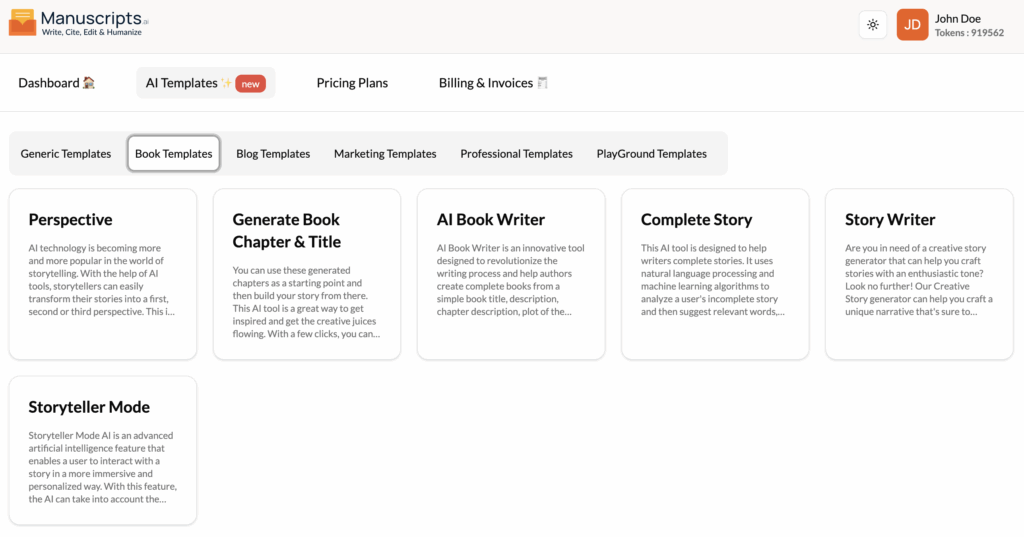
Perspective
What It Is?
The Perspective template is a powerful narrative tool for fiction authors. It allows you to instantly rewrite a piece of your story from a different point of view (POV). AI technology makes it easy to transform your existing story content, automatically rewriting it into a first-person, second-person, or third-person perspective.
This process is incredibly fast and allows you, the storyteller, to experiment with different narrative styles without a complete manual rewrite. You can focus your efforts on crafting an engaging story while using this tool to discover which perspective best serves your characters and plot.
How to Use It?
- Navigate to Templates: Open the “AI Templates” library.
- Select Template: Find and click on “Perspective” in the “Book Templates” section.
- Paste Your Text: Paste the scene or section of your story you want to transform.
- Select Target Perspective: Choose from the options:
- First Person (I, we): “I walked down the street.”
- Second Person (you): “You walk down the street.”
- Third Person Limited (he/she/they): “He walked down the street, thinking about the rain.”
- Third Person Omniscient (he/she/they, all-knowing): “He walked down the street, while across town, she was preparing to leave.”
- Generate: Click the “Generate” button.
Best Use Cases
- Narrative Experimentation: Quickly seeing if your third-person story feels more immediate in first-person.
- Deepening Character: Rewriting a scene from a different character’s (first-person) POV to understand their motivations, even if you don’t use it in the final draft.
- Stylistic Choice: Experimenting with the less common second-person POV for a unique feel.
Generate Book Chapter & Title
What It Is?
The Generate Book Chapter & Title template is a high-powered creative starter pack. It’s designed to blast through the initial “blank page” barrier by generating a potential book title and a full first chapter based on your core story idea.
You can use these generated chapters as a strong starting point and then build your story from there. This AI tool is a great way to get inspired and get your creative juices flowing. With just a few inputs, you can have a title and the beginning of your story ready to go, allowing you to spend more time developing the rest of your narrative in greater detail.
How to Use It?
- Navigate to Templates: Open the “AI Templates” library.
- Select Template: Find and click on “Generate Book Chapter & Title” in the “Book Templates” section.
- Provide Inputs:
- Genre: (e.g., “Sci-Fi,” “Romance,” “Thriller”)
- Brief Synopsis: A 2-3 sentence summary of your story idea.
- Key Characters/Setting (Optional): Mention your protagonist or the world.
- Generate: Click the “Generate” button. The AI will produce a list of potential titles and a draft of Chapter 1.
Best Use Cases
- Starting a New Novel: When you have a great idea but are struggling with the opening lines.
- Inspiration: Generating multiple “first chapters” to see which one feels most compelling.
- NaNoWriMo: A perfect tool to kickstart a novel-writing challenge when you’re on a tight deadline.
AI Book Writer
What It Is?
The AI Book Writer is one of the most innovative and powerful tools in the library, designed to revolutionize the writing process. This template helps authors create complete books from a set of structured inputs.
By providing a book title, a general description, a description for each chapter, and the plot points for a chapter, this tool can generate a full manuscript that is compelling, engaging, and tailored to your individual style. It provides a unique and powerful platform to take your writing to the next level, turning a detailed outline into a full first draft.
How to Use It?
This is a high-level template that requires detailed inputs for the best results.
- Navigate to Templates: Open the “AI Templates” library.
- Select Template: Find and click on “AI Book Writer” in the “Book Templates” section.
- Fill in the Fields:
- Book Title: Your working title.
- Book Description/Synopsis: A summary of the entire book’s plot.
- Chapter to Write: (e.g., “Chapter 1”)
- Chapter Description: A summary of what happens in this specific chapter.
- Plot of the Book Chapter: A more detailed, beat-by-beat list of events for the chapter.
- Tone of Voice: (e.g., “Dark and suspenseful,” “Lighthearted and witty”)
- Generate: Click “Generate.” The AI will write the full chapter based on your detailed instructions. You can repeat this process for each chapter.
Best Use Cases
- Drafting from an Outline: Turning your detailed Lore Book outline into a prose draft, chapter by chapter.
- Accelerated Writing: Dramatically speeding up the process of writing a novel or non-fiction book.
- Ghostwriting Assistance: Providing a strong foundation for ghostwriters to build upon.
Complete Story
What It Is?
The Complete Story template is designed to help writers who are “stuck” in the middle of a narrative. It uses natural language processing to analyze your incomplete story and then intelligently suggest relevant words, sentences, and paragraphs to help you continue and complete it.
Beyond simple continuation, this tool can also suggest possible plot twists and other narrative elements to add excitement and depth to your story. It can be used to generate new ideas, refine existing ones, or simply push you past a moment of writer’s block. It also checks for grammar and spelling, helping you create a flawless story.
How to Use It?
- Navigate to Templates: Open the “AI Templates” library.
- Select Template: Find and click on “Complete Story” in the “Book Templates” section.
- Paste Your Text: Paste your incomplete story, scene, or chapter into the input field.
- Add a Prompt (Optional): You can guide the AI by adding a prompt at the end, like “What happens next?” or “Suggest a plot twist where the best friend is the villain.”
- Generate: Click the “Generate” button to get a suggested continuation.
Best Use Cases
- Writer’s Block: When you’ve written yourself into a corner and don’t know what happens next.
- Plot Development: Brainstorming different directions your story could go.
- Adding Depth: Asking the AI to add a “narrative element” to add more excitement to a slow scene.
Story Writer
What It Is?
The Story Writer is your creative story generator. It’s designed to help you craft a unique narrative from the ground up, with a specific focus on achieving an enthusiastic or desired tone.
This template provides you with a list of keywords to help you get started, or you can provide your own topic. With this generator, you have the power to generate stories that are exciting, interesting, and thought-provoking. It’s less about completing your existing story and more about creating a new short story from a simple prompt.
How to Use It?
- Navigate to Templates: Open the “AI Templates” library.
- Select Template: Find and click on “Story Writer” in the “Book Templates” section.
- Provide Inputs:
- Topic: Enter the subject of your story (e.g., “A space pirate who finds a lost treasure”).
- Keywords (Optional): List any keywords to include (e.g., “laser,” “ancient map,” “betrayal”).
- Tone: Specify the desired tone (e.g., “Enthusiastic,” “Mysterious,” “Humorous”).
- Generate: Click the “Generate” button to get a short story.
Best Use Cases
- Creative Warm-ups: Writing a quick, fun story to get your creative juices flowing.
- Brainstorming: Testing a story idea to see if it has potential.
- Creating Short Fiction: Generating “flash fiction” for a blog or social media.
Storyteller Mode
What It Is?
Storyteller Mode is an advanced, interactive AI feature that allows you to engage with a story in a more immersive and personalized way. Instead of just generating static text, this template allows for a back-and-forth conversation.
With this feature, the AI can take into account your preferences and interests to generate personalized stories tailored to you. It can adapt the story to your current emotional state or choices, allowing for a dynamic and interactive storytelling experience similar to a “choose your own adventure” game, but with near-infinite possibilities.
How to Use It?
- Navigate to Templates: Open the “AI Templates” library.
- Select Template: Find and click on “Storyteller Mode” in the “Book Templates” section.
- Start the Story: Provide an initial prompt to set the scene (e.g., “I am a detective in 1940s New York. I just walked into my office and found a mysterious woman waiting for me.”).
- Interact: The AI will describe the scene and ask you “What do you do?” You respond with your action (“I ask her what she wants,” “I look around my office for signs of a break-in”), and the AI generates the next part of the story based on your input.
Best Use Cases
- Interactive Storytelling: “Playing” a story as you write it.
- Role-Playing: Exploring your character’s personality by making decisions as them.
Brainstorming Plot: Interactively discovering your plot by letting the AI react to your ideas in real-time.